
Change the default planning options.
you can change preference options to determine how Fusion FX will behave when planning a design.
What do you want to do?
- Preference: Change the way in which items are displayed within the add palette
- Preference: Change clash checking options
- Preference: Change the measurement system
- Preference: Change the initial grid size for plan and elevation views
- Preference: Change the initial design size
- Preference: Set the initial catalogue selection for new designs
- Preference: Change the minimum plan distance
- Preference: Change the clipping plan percentage for the elevation view
- Preference: Show/Hide the context sensitive 'Free Rotation' option
- Preference: Show/Hide additional options prompt when adding windows and doors
- Preference: Change worktop options
Preference: Change the way in which items are displayed within the add palette
- In the left pane, click General.
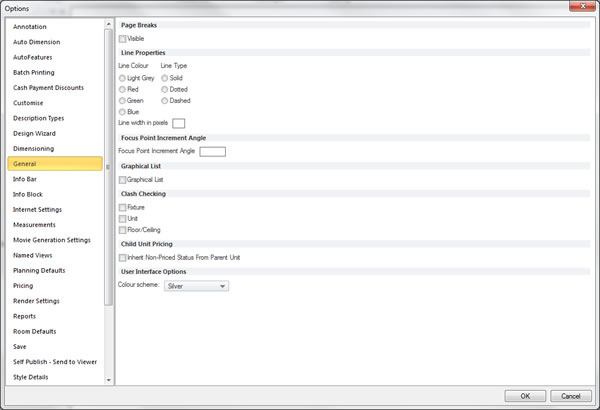
- Within the Graphical List section, select or clear the Graphical List check box.
 TOP OF PAGE
Preference: Change clash checking options
- In the left pane, click General.
- Within the Clash Checking section, select or clear the the desired items.
Preference: Change the measurement system
- In the left pane, click Measurements.
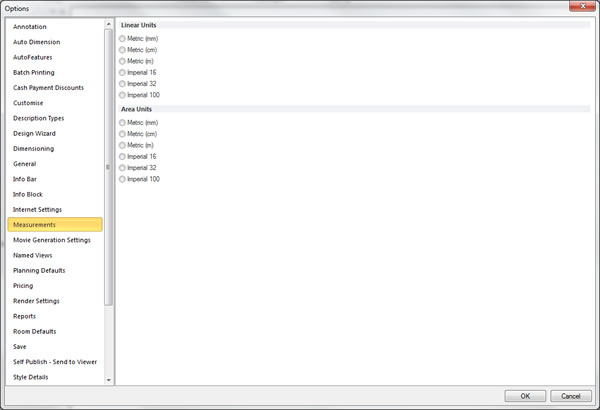
- Within the Linear Units section and the Area Units section, select the desired measurement system.
Preference: Change the initial grid size for plan and elevation views
- In the left pane, click Planning Defaults.
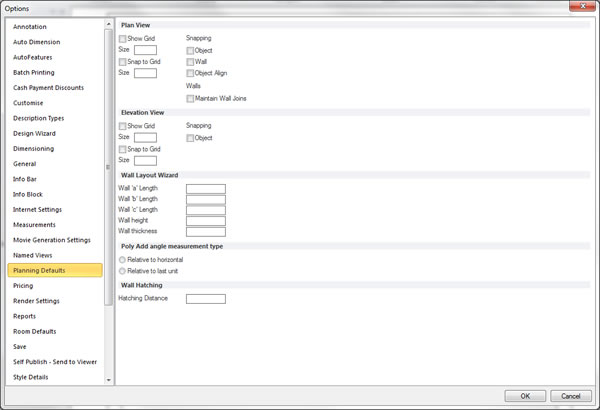
- Within the Plan View section and the Elevation View section, select the desired grid options.
Preference: Change the initial design size
- In the left pane, click Room Defaults.
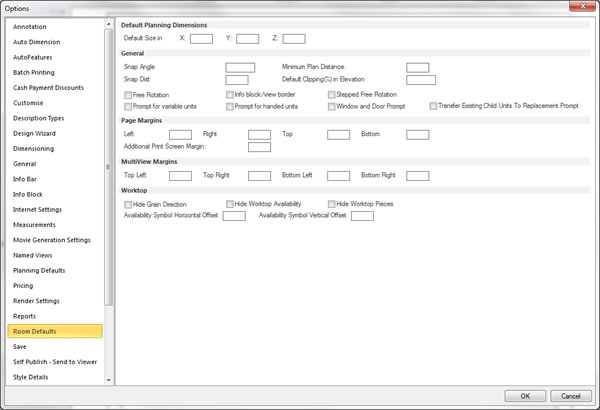
- Within the Default Planning Dimensions section, set the desired size.
Preference: Set the initial catalogue selection for new designs
- In the left pane, click Room Defaults.
- Within the Manufacturer Selection section, selected or clear the desired options.
Preference: Change the minimum plan distance
- In the left pane, click Room Defaults.
- Within the General section, set the desired Minimum Plan Distance.
Preference: Change the clipping plan percentage for the elevation view
- In the left pane, click Room Defaults.
- Within the General section, set the desired Default Clipping (%) In Elevation.
Preference: Show/Hide the context sensitive 'Free Rotation' option
- In the left pane, click Room Defaults.
- Within the General section, select or clear the Free Rotation check box.
Preference: Show/Hide additional options prompt when adding windows and doors
- In the left pane, click Room Defaults.
- Within the General section, select or clear the Window and Door Prompt check box.