
Surface Covering.
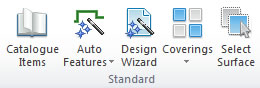
Covering can be found within the Insert Tab under Coverings.

What do you want to do?
Add covering to a wall
- On the Insert tab, in the Standard group, select Coverings.
- Select Standard Wall.
NOTE To add covering at least one wall must be selected.
 TOP OF PAGE
Add multiple covering areas to a wall
- On the Insert tab, in the Standard group, select Coverings.
- Select Advanced Wall.
NOTE To add covering at least one wall must be selected.
Add covering to a floor
- On the Insert tab, in the Standard group, select Coverings.
- Select Floor.
NOTE To add covering at least one wall must be selected.
Add covering to a ceiling
- On the Insert tab, in the Standard group, select Coverings.
- Select Ceiling.
NOTE You must be in Perspective View to add Ceiling Covering.
Add covering to an item
- On the Insert tab, in the Standard group, select Coverings.
- Select Item Surface.
NOTE You must be in Perspective View to select a surface for Covering.
NOTE You must have a surface selected using the Surface Selection Tool to use Item Surface covering.
Calculate covering area used within a design
- On the Insert tab, in the Standard group, select Coverings.
- Select Calculate Area.
Edit a covering area
- On the Insert tab, in the Standard group, select Coverings.
- Select Modify.
NOTE You must have a covering area selected either with the Standard Selection Tool or with the Surface Selection Tool to modify covering.
Regenerate all coverings for a design
- On the Insert tab, in the Standard group, select Coverings.
- Select Regenerate.
Remove covering
- On the Insert tab, in the Standard group, select Coverings.
- Select Remove.
NOTE You must have an item selected remove its covering.