
Change the default printing options.
You can choose preferences to control how Fusion FX prints a design.
What do you want to do?
Preference: Change the page margins
- In the left pane, click Room Defaults.
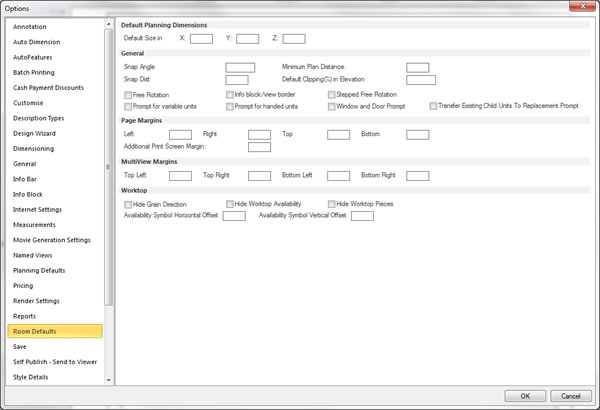
- Within the Page Margins section, select or clear the desired page margins.
 TOP OF PAGE
Preference: Create, edit or delete a batch printing set
- In the left pane, click Batch Printing.
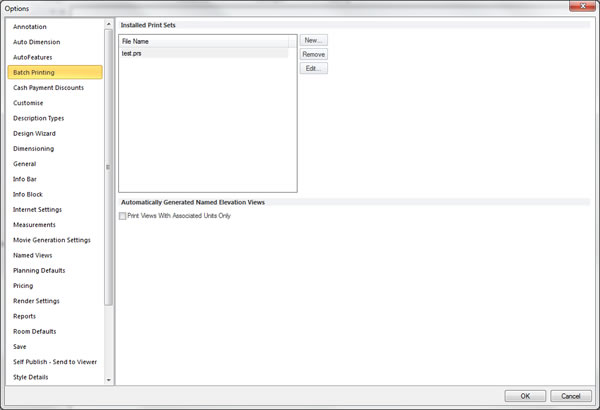
- Within the Installed Print Sets section, create, edit or delete the desired batch print sets.
NOTE It is possible to only include those automatically generated named views that have items associated with a wall. This can be set by the Print Views With Associated Units Only option within the Automatically Generated Named Elevation Views section.
Preference: Show/Hide page breaks in plan and elevation views
- In the left pane, click General.
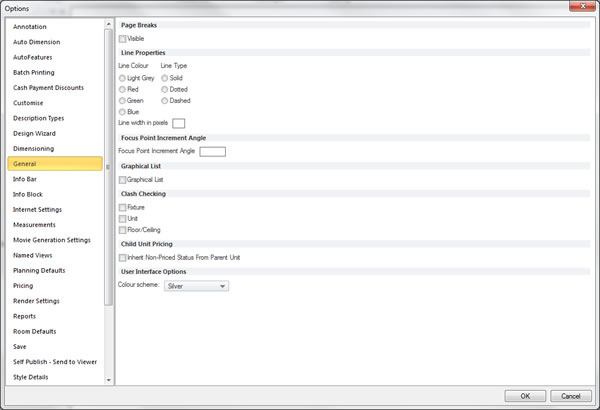
- Within the Page Breaks section, select or clear the Visible check box.
Change the colour and width of page break lines
- In the left pane, click General.
- Within the Line Properties section, select or clear the desired options.
Preference: Initially set print preview to a wireframe render
- In the left pane, click Render Settings.
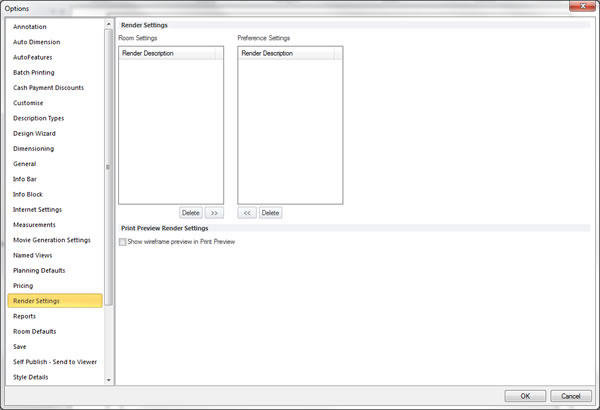
- Within the Print Preview Render Settings section, select or clear the Show Wireframe Preview In Print Preview check box.
Preference: Change unit list or installation key options
You can independently change options relating the unit list or installation key for plan and elevation views.
- In the left pane, click Unit List/Key.
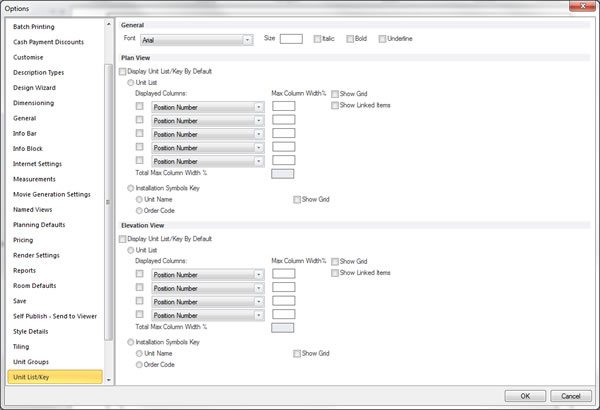
- Within the General section, select or clear the desired items.
- Within the Plan View section, select or clear the desired items.
- Within the Elevation View section, select or clear the desired items.